
This manual follows the work you do in DecayCore: prepare measurements, choose a workflow, generate filters, inspect the result, and deploy it safely.
1. Before you start
You need:
- a calibrated measurement microphone
- separate Left and Right measurements
- a playback system that accepts FIR convolution filters
- a way to start playback at a low volume
DecayCore accepts impulse-response WAV files and text exports containing frequency, magnitude, and phase. Packaged releases also include guided measurement and DecayCore automatic mode (recommended).
Source-build note: the public source checkout provides the complete Basic and Advanced manual workflows. Guided measurement and the native Automatic mode decision engine are included only in packaged releases.
A safe first run
- Use Measure for guided Left and Right measurements with RT60 and harmonic data, then press Use final measurements. To import existing measurements, open Choose files… in the sidebar.
- Select DecayCore automatic mode (recommended) and Asymmetric.
- Keep the balanced goal and Adaptive: derive target from room acoustics target strategy.
- Press START on START / Results.
- Check the warnings and selected solution.
- Export the ZIP, load the filters, and listen to familiar music.
When running from source, use Basic instead of Automatic mode.
2. Measure or import
Select measurement files
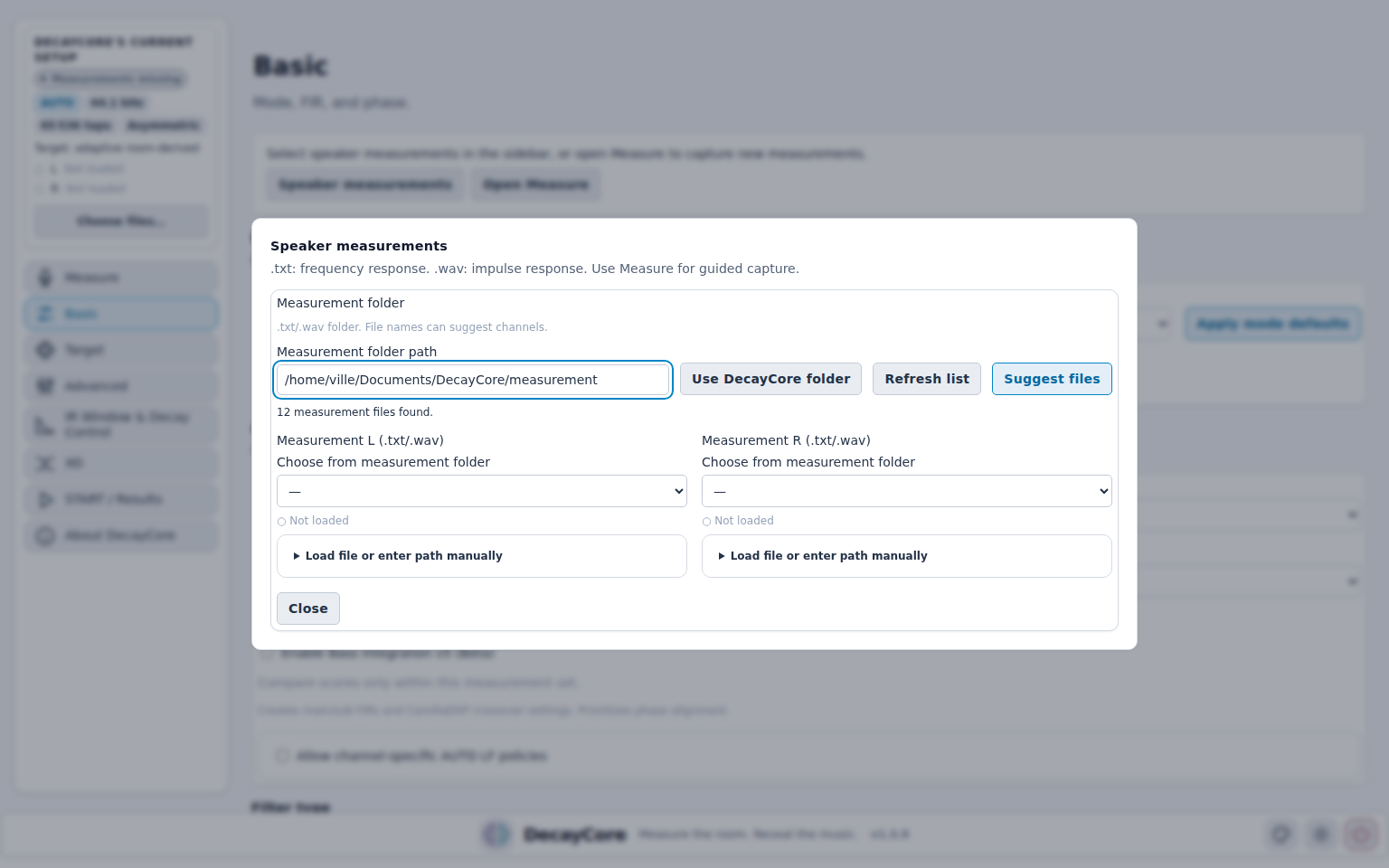
Open Choose files… in the sidebar’s current setup summary. The window shows the measurement folder and the Left and Right channels side by side. Select each channel’s file from the folder, or expand Load file or enter path manually to upload a file or enter its path. Suggest files uses file names to suggest channel assignments; check the assignments before running correction.
The sidebar shows the selected file for each channel. Once all required channels are loaded, the button changes to Change files…. With bass integration enabled, the same window shows the main and subwoofer channels.
Guided measurement
This is the recommended source for correction when your platform and routing support it. DecayCore analyses the recorded sweep for RT60 decay and harmonic distortion as well as the speaker response. RT60 provides measured decay information; the harmonic curves support boost-risk guidance. Keep the saved session files together so these results remain available when reloading the WAVs.
Open Measure and configure the input device, output device, microphone calibration, selected channels, positions, and repeats. The guided session measures each selected channel, pauses when the microphone must move, rejects unusable takes, and saves one impulse-response WAV per channel.
Set measurement volume at the end of the signal chain, such as the amplifier or an analog volume control. Digital attenuation earlier in the chain also lowers measurement signal-to-noise ratio.
Keep all WAV files from one session at their original gain and timing. Do not normalize channels separately or move each impulse to a different time origin.
On Windows, subwoofer measurement requires the playback device to be configured for 5.1 or 7.1. The sweep uses the LFE channel. Main-speaker measurement has also been verified on Ubuntu 22.04; macOS measurement has not been verified on project hardware.
REW text files
Export Left and Right separately with:
- frequency in hertz
- magnitude in decibels
- phase in degrees
Normal REW headers and comments are accepted. Phase is required for phase-aware correction.
Impulse-response WAV files
Use mono WAV files with consistent sample rate, gain, and timing. When exporting from REW, use the same options for every channel; float32, normalization, and consistent t=0 placement are suitable defaults.
A suitable imported IR can provide RT60 from its recorded decay. Standard frequency-response text exports lack that decay information, and ordinary linear IR WAVs do not include the separate harmonic curves saved by DecayCore. Imports remain supported, but use DecayCore’s own measurement when possible to supply the fuller set of measurement data.
Input checklist
- Avoid clipping, background noise, and changed routing between channels.
- Use the same microphone position and procedure for corresponding measurements.
- Keep sample rates consistent when practical.
- Check that Left and Right files are not swapped.
3. Choose the operating mode
All modes use the same DSP engine. The mode changes who chooses the settings and how tightly the interface constrains them.
Automatic mode
Automatic mode evaluates candidate presets, ranks them against the current measurements, refines the winner, and applies it before export. It is the recommended starting point in packaged releases.
Choose an AUTO goal:
- balanced — general-purpose default
- room-safe — more conservative for difficult measurements
- low-ripple — prioritizes smoother low-frequency response around modes
- prefer bass — gives bass target matching more weight
- subwoofers — focuses analysis and leveling on subwoofer work
The scores compare candidates from the same measurement set. Do not use them to compare unrelated speakers or rooms.
Automatic mode manages many Advanced settings. Fields that remain enabled are deliberate expert overrides. The final summary reports the effective values used, including any winner refinement.
Basic
Basic provides manual control with conservative defaults and hard safety clamps. Use it for source builds, learning the controls, or making a repeatable manual reference filter.
Advanced
Advanced exposes more correction, phase, timing, and protection controls. It is intended for measured experiments where you understand the effect of each change. Safety-critical numerical guards remain active.
At the top of Advanced, choose Strict, Balanced or Loose, review the preview, then press Apply. Strict uses tighter correction limits; Balanced is the recommended starting point; Loose allows more freedom for fine-tuning. Each preset sets the correction slope limit, maximum cut, transition width and regularization. Your boost limits, correction range, phase settings and bass protection retain their current values. Changing a preset value manually shows Custom. Automatic mode locks the preset controls because it manages these settings itself.
Selecting a mode does not rewrite every visible value. Use Apply mode defaults when you want to reset the controls to that mode’s baseline.
4. Choose the target and filter type
Target strategies in Automatic mode
- Adaptive: derive target from room acoustics (default) scores built-in curves to select a base, then makes low-frequency changes of at most ±1 dB from stereo measurement evidence. Reliable RT60 data can permit additional bass lift, but never creates it by itself.
- Auto: search best built-in evaluates several built-in curves and selects the best-ranked result. A good alternative when measurement metadata is limited or the sources are external.
- Use selected target curve from Target page uses the curve you chose or imported and skips automatic target selection.
In Basic and Advanced modes, select the target directly on Target. A mild house curve is usually a safer starting point than a perfectly flat in-room target.
Filter types
| Filter type | Use it when | Main tradeoff |
|---|---|---|
| Asymmetric | You want the recommended general-purpose result. | Balances latency, phase correction, and pre-ringing containment. |
| Minimum Phase | Low latency and causal behavior matter most. | Does not provide linear-phase correction. |
| Mixed Phase | You want bounded excess-phase correction in a selected band. | Needs careful phase limits and verification. |
| Linear Phase | Linear-phase behavior matters more than latency. | Long filters can add latency and energy before the main impulse. |
5. Set practical limits
For a first run, leave mode defaults in place. These controls matter most when diagnosing or comparing results.
Sample rate and taps
Match the sample rate to the playback pipeline. More taps give better low-frequency and time resolution but increase processing cost and latency. Multi-rate export scales the tap count for each sample-rate family.
Automate tap count
In packaged builds, Automate tap count on the Run tab generates filters with the current settings and then shortens their exported support within a strict response-error bound. It works with Asymmetric, Minimum, Mixed and Linear Phase. The taps setting still controls the design resolution; it is not replaced by the final export length. Each sample rate is checked separately.
All output channels share the same crop and removed delay, preserving their relative timing. Odd final lengths receive one trailing zero. If no shorter support passes, the existing support is retained, with even-length padding when needed. The results show design/output taps and the actual common delay removed. Response and scoring diagnostics describe the design before this final step; impulse metrics describe the exported filters. Shorter support does not always mean lower delay, particularly with minimum-phase filters.
When the usual tap-count check cannot find a shorter filter, an enabled high-pass filter permits a small additional absolute response error below its cutoff (0.002% of each channel’s response peak). Limits at and above the cutoff remain unchanged. Results and the export summary identify when this allowance was used. Runs without a high-pass filter, and runs with a separate sub output, retain the original error limits.
Correction range
Use the lower and upper correction limits to keep correction inside the measured, trustworthy band. Broad full-range correction requires better measurement quality than bass-focused correction.
Maximum boost and cut
Maximum boost is a ceiling, not a target. Deep cancellation dips often change with microphone position and should not be filled aggressively. Cuts are usually more reliable for reducing peaks.
Maximum cut controls the strongest permitted attenuation. Leave enough headroom for the target and any boost that remains.
Local correction threshold
Ignore local correction below (dB) removes narrow correction details smaller than the threshold while keeping the broad response shape. The range is 0–3 dB; 0 keeps all local detail and larger values produce a smoother filter.
HPF and low-bass protection
A high-pass filter (HPF) protects the system below its useful range. In Automatic mode, enabling HPF lets the search choose its frequency and slope. Low-bass boost lock and Excursion Protection can block risky boost while still allowing cuts.
Level matching and Stereo Link
Level matching establishes the reference between measurement and target. Stereo Link keeps left and right decisions coherent without forcing identical correction where the channels differ.
6. Advanced correction features
Temporal Decay Control
Temporal Decay Control (TDC) reduces supported low-frequency energy that decays too slowly. It is separate from ordinary magnitude matching. Use it only where measurement evidence indicates a decay problem, and keep strength and maximum reduction bounded.
Adaptive Frequency-Domain Windowing
Adaptive Frequency-Domain Windowing (A-FDW) changes analysis resolution with frequency and acoustic confidence. It helps the filter follow broad, repeatable behavior instead of narrow reflection detail.
Phase correction
Excess-phase strength controls how much supported phase error is corrected. Full phase correction up to and Phase correction faded out by bound the correction band. The group-delay gradient limit contains abrupt timing changes.
Hybrid IIR + FIR
Hybrid IIR can move supported narrow bass cuts into CamillaDSP peaking filters and let FIR handle the remaining broadband magnitude and phase correction. The exported CamillaDSP configuration must include both IIR and FIR stages; loading only the WAV omits the transferred cuts.
Bass Integration
Bass Integration uses separate main and subwoofer impulse measurements to create a phase-aligned shared sub branch. With two subwoofers, DecayCore combines their measured responses and exports one shared mono Sub FIR. Apply the reported crossover, delay, polarity, and gain settings, then verify them in the room.
IR export windowing
Impulse-response export windowing controls how the final FIR is placed and shaped in time. It does not change the target or the correction policy used to design the filter. auto is the normal choice; rew_asym provides a REW-style asymmetric window.
XO Phase Model
The crossover phase model describes expected crossover rotation so phase correction does not mistake it for an unrelated loudspeaker error. Use it only when the crossover topology and slopes are known.
7. Generate and read the result
Open START / Results and press START. During an Automatic run, DecayCore may evaluate targets, search preset candidates, refine finalists, and validate the winner. Repeated runs with the same measurements and relevant settings may reuse compatible cache data.
Review these items before export:
- System Health: resolve every
CRIT; inspect eachWARN. - Magnitude: confirm the broad target match improved without implausible boost.
- Phase and Group Delay: look for contained, smooth timing behavior.
- Filter: check the actual correction demand and headroom.
- Impulse: inspect energy around the main peak, especially with linear or mixed-phase filters.
- Summary: confirm mode, target, effective limits, warnings, and Automatic winner details.
Automatic ranking compares filters made from the same measurements. It is not a sound-quality score.
8. Export and deploy
The result ZIP normally includes:
- Left and Right FIR WAV files in the selected output format
- bypass FIR files for level- and timing-matched comparison
Summary_...txt- CamillaDSP configuration files
- Sub FIR and crossover settings when Bass Integration is used
The default output location is Documents/DecayCore/filters/<version>/. If it is not writable, the results page reports the fallback location.
CamillaDSP
Use the generated YAML when possible, or add each WAV to the correct convolution channel. Hybrid IIR requires the exported peaking filters as well as the FIR stage. Confirm sample rate, channel routing, and gain.
Roon
Load the compatible ZIP or WAV set in DSP Engine → Convolution. Ensure the package contains the rate used by playback.
Equalizer APO
Load each WAV through Convolution, verify channel assignment, and add enough preamp reduction to prevent clipping.
9. Listen
- Start playback at reduced level.
- Confirm Left, Right, and any Sub output are routed correctly.
- Use recordings you know well.
- Compare with bypass at the same volume.
- Listen for missing bass, excess brightness, unstable imaging, or anything that sounds unnatural.
If it sounds worse, do not keep the filter because the graph looks better. Change one major setting at a time and listen again.
DecayCore does not apply exported filters to its own measurement sweep. A corrected-system measurement requires you to route the sweep through the convolver. It can help find setup errors, but it is optional and does not replace listening.
10. Troubleshooting
The run will not start
Check that Left and Right files exist, are readable, and match the selected workflow. Resolve CRIT health checks. If the app still behaves unexpectedly, use About DecayCore → Maintenance to clear Automatic-mode caches or reset settings.
The result sounds thin or bass is weak
Check target selection, HPF, Low-bass boost lock, Excursion Protection, TDC strength, channel routing, and subwoofer polarity. Make sure the convolver has not loaded a bypass or wrong-rate filter.
The result sounds bright or aggressive
Lower the upper correction limit, choose a gentler target, increase smoothing, or compare with Basic mode defaults. Do not compensate by adding broad gain without checking headroom.
Bass still rings
Confirm that the measurement is reliable and TDC is active where needed. A persistent room mode may need speaker or listening-position changes, acoustic treatment, or a carefully verified Hybrid IIR cut.
Stereo image is unstable
Confirm consistent Left and Right measurements, correct file assignment, Stereo Link settings, and alignment. Re-measure if either channel was captured from a different microphone position or routing state.
Many measurement takes are rejected
Check clipping, noise, cables, device selection, sweep level, and microphone movement. Fix the measurement before weakening quality checks.
11. Essential terms
- FIR: a finite impulse response filter used by a convolution engine.
- IR: an impulse response containing timing, phase, and magnitude information.
- Target curve: the response shape the correction aims toward.
- Headroom: unused digital level reserved to prevent clipping.
- Excess phase: phase behavior left after ordinary propagation delay and the chosen baseline are removed.
- Group delay: frequency-dependent delay, used to inspect timing behavior.
- RT60: an estimate of how long sound energy takes to decay by 60 dB.
- Taps: the number of samples in the FIR; more taps increase time span and processing cost.
A filter is successful only if it sounds better. A flatter graph on its own proves nothing.